
How to Create an Outreach Sequence (Email, LinkedIn, WhatsApp)
Rakesh · August 5, 2026 · 5 min read
An outreach sequence is built from one or more lists: you tick which steps to include per channel — LinkedIn, email, or WhatsApp — let AI draft the messages, and activate it. Candidates move through the steps automatically, and a reply from any candidate stops their sequence immediately, so nothing further gets sent to them.
Step 1: Start from a list
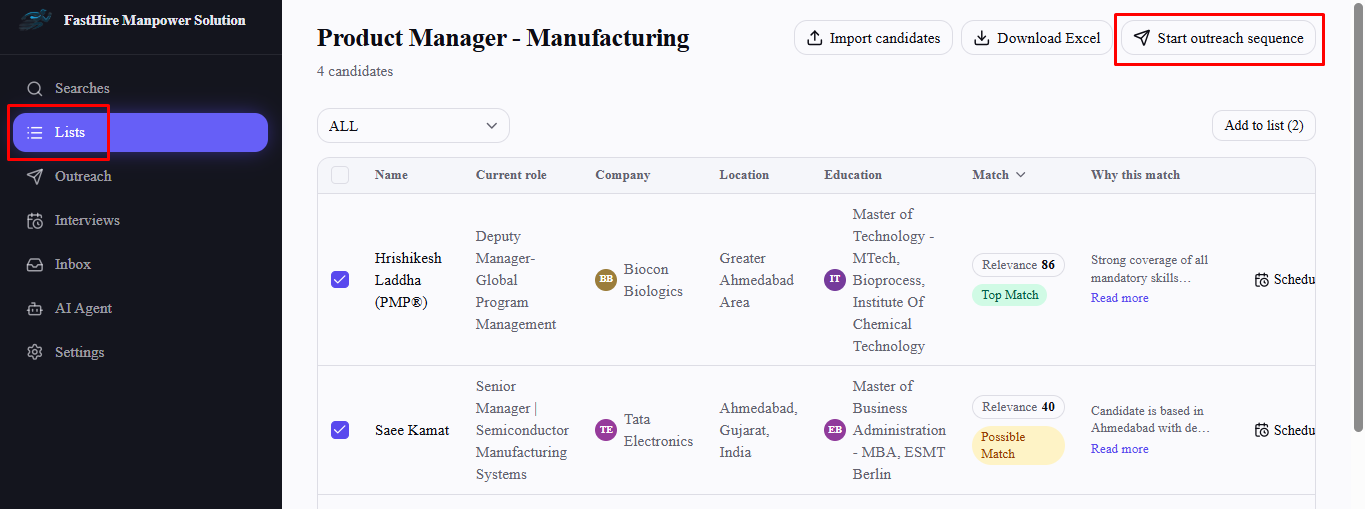
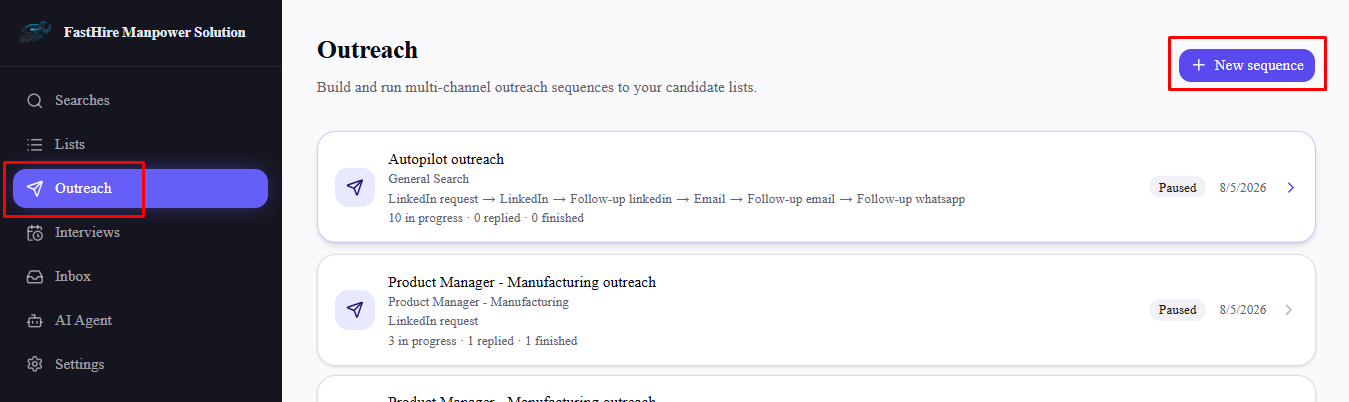
Select Start outreach sequence from any list's detail page, or go to Sequences → New and pick your list(s) there. You can target more than one list at once — the sequence keeps pulling in any candidate added to those lists later, even after it's already activated.
Step 2: Choose your steps
Tick which steps to include from the sequence steps panel:
LinkedIn contact request — skipped automatically for candidates you're already connected to
LinkedIn message — sent once the contact request is accepted (or right away if already connected); requires the contact request step
LinkedIn follow-up — sent if there's no reply; requires the LinkedIn message step; repeatable up to 3 times
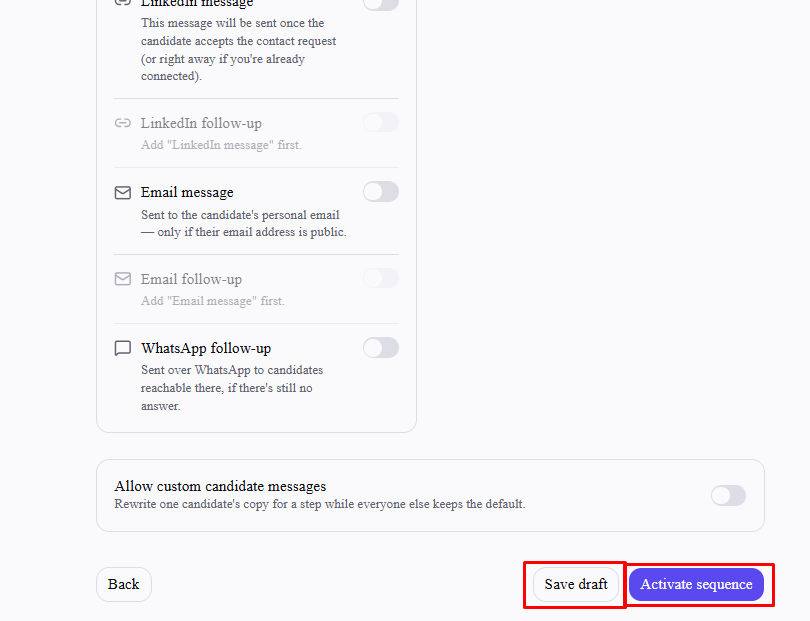
Email message — sent to the candidate's personal email, only if it's publicly available
Email follow-up — requires the email message step; repeatable up to 3 times
WhatsApp follow-up — sent to candidates reachable on WhatsApp if there's still no answer
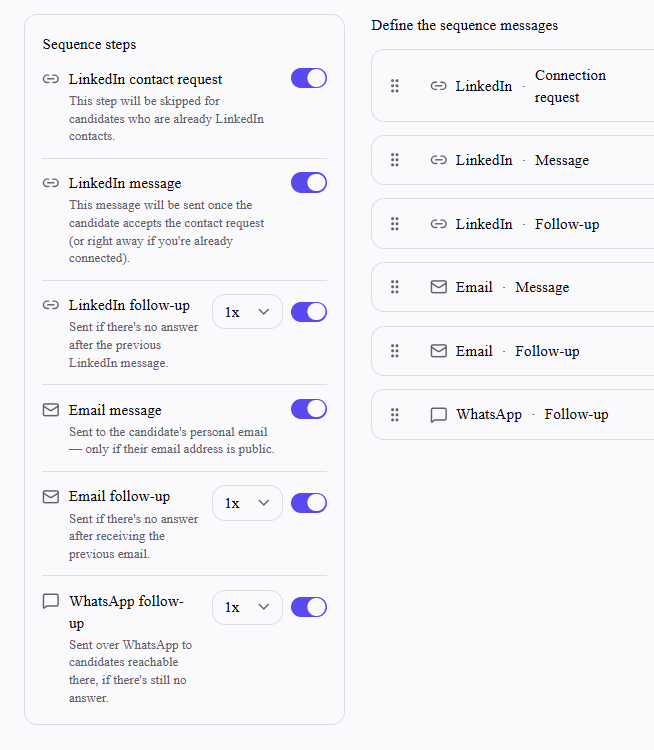
WhatsApp is follow-up only — there's no standalone WhatsApp first-touch message, unlike LinkedIn and email. Steps with a prerequisite (like a follow-up) stay locked until the step they depend on is ticked, and unticking a step also removes anything that depends on it.
Step 3: Set message settings and generate content
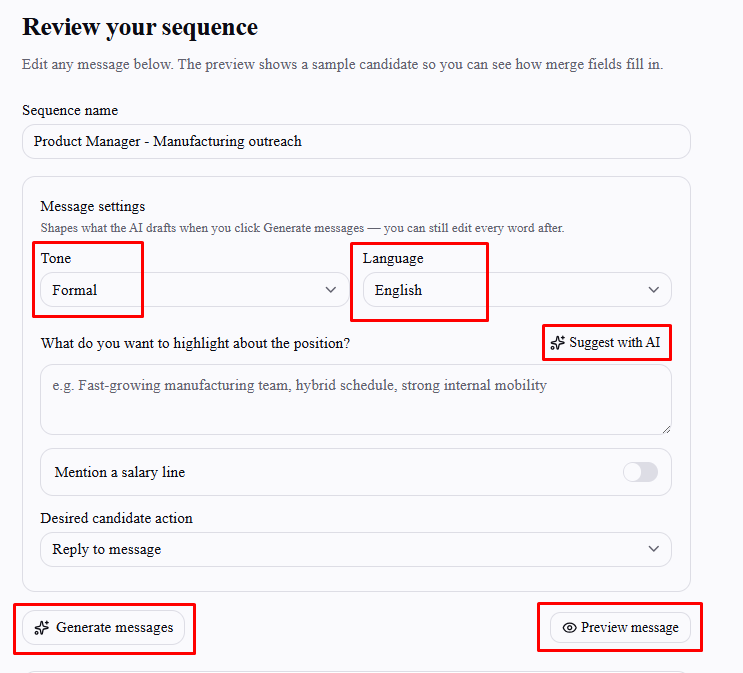
Set Tone, Language, what to highlight about the role (with an optional Suggest with AI), whether to mention a salary line, and the candidate's desired action (apply via a link, or schedule a meeting). Select Generate messages to have AI draft copy for every ticked step — each one stays fully editable afterward, and Preview message shows how it looks for a sample candidate with merge fields filled in.
Need a specific candidate to get different wording than everyone else? Turn on "Allow custom candidate messages" to rewrite one candidate's copy for a step while the rest keep the default.
Step 4: Save as a draft, or activate
Select Save draft to hold the sequence without sending anything yet, or Activate sequence to start it for real. Activating is blocked (draft still works) if:
You don't have an outreach seat enabled — an admin can enable one from Settings → Team
You're out of trial credits — check Settings → Billing
Your selected list(s) have no candidates yet
What happens after activation
Candidates move through your ticked steps automatically — contact requests, messages, and follow-ups send on their own schedule. The moment a candidate replies on any channel, their sequence stops; no further steps go to them. Check Interviews or Inbox for responses as they come in.
Frequently asked questions
Can I edit a sequence after activating it?
Steps already sent to a candidate can't be undone, but you can still edit upcoming message content and settings for a running sequence.
Do I need LinkedIn or email connected to use those steps?
Yes — LinkedIn steps send through the connected LinkedIn account of whoever created the sequence, specifically. If that connection isn't active (never connected, or expired), the entire sequence pauses rather than skipping just that step or retrying indefinitely — reconnect it from Settings → Connections, then the sequence picks back up.
What happens if a candidate is missing an email address?
The email message and email follow-up steps are simply skipped for that candidate — the rest of their sequence still runs normally.
Can I target the same list with more than one sequence?
Yes, but be deliberate about it — nothing stops you from double-messaging the same candidates through two active sequences targeting the same list.