
Connecting Google Calendar for Interview Scheduling
Rakesh · August 5, 2026 · 3 min read
Connecting Google Calendar lets FastHire auto-generate a real Google Meet link and calendar event whenever you schedule an interview, instead of you pasting in a link manually.
Step 1: Start the connection
Go to Settings → Connections and find the Calendar section. Select Connect Google Calendar.
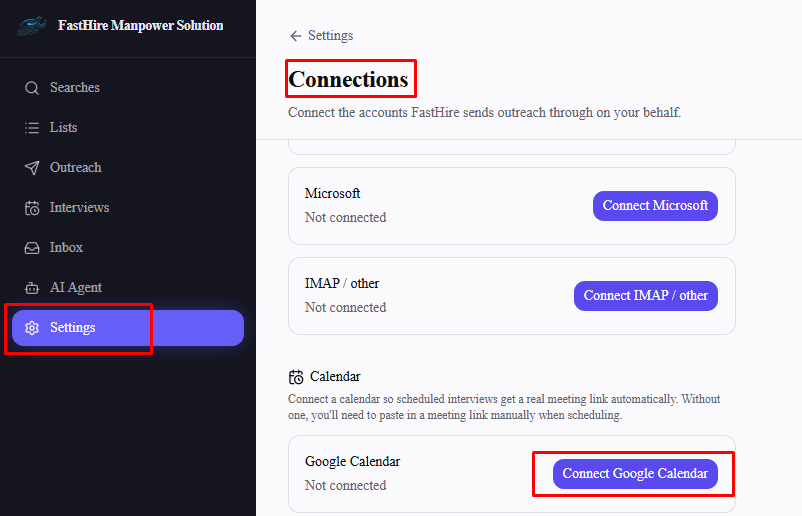
Step 2: Grant access on Google's consent screen
You'll be redirected to Google to sign in and approve access, then brought back to FastHire. A confirmation banner appears once the connection is submitted, and the Calendar section updates to show Connected shortly after.
What this enables
When scheduling an interview, choosing "Auto-generate a meeting link" now creates a real Google Calendar event with a Google Meet link — added as an attendee if the candidate's email is known — instead of falling back to a Calendly link or requiring you to paste one in manually. Canceling an interview later also cancels this calendar event.
If you'd rather use Microsoft Teams instead of Google Calendar, see "Connecting Microsoft Teams Calendar for Interview Scheduling" — you can only have one calendar connected at a time.
Frequently asked questions
I already connected a calendar during signup — do I need to do this again?
Check Settings → Connections to be sure. Signup's "Connect your calendar" step doesn't always finish a real connection — if you skipped it, or it didn't complete, the Calendar section here will show "Not connected" and you'll need to connect it for real from here.
What if I have both Google Calendar and Calendly connected?
Google Calendar takes priority — FastHire only falls back to your Calendly link when Calendar isn't connected.
Do I need to reconnect if my access expires?
Yes — select Reconnect in the same Calendar section if your connection ever needs refreshing.
Does this affect anything besides interview scheduling?
No — this connection is used specifically for generating meeting links and calendar events when you schedule interviews.
Can I connect Google Calendar alongside Calendly or Microsoft Teams?
No — FastHire only allows one calendar connection at a time, whichever of Google Calendar, Microsoft Teams, or Calendly you connect first. The Connections page disables the other two options with a note to disconnect your current calendar first. To switch, disconnect Google Calendar, then connect the other one.