
How to Save Candidates to a List
Rakesh · August 5, 2026 · 3 min read
You can save candidates to a list two ways: one at a time from a candidate's detail panel, or in bulk by selecting several from a search's results. Either way opens the same dialog — pick an existing list or create a new one on the spot.
Method 1: Save a single candidate
Open a candidate's detail panel from any search's results.
Select Manage lists.
Choose an existing list from the dropdown (shown with its current candidate count), or select Create new list and type a name.
Select Add.
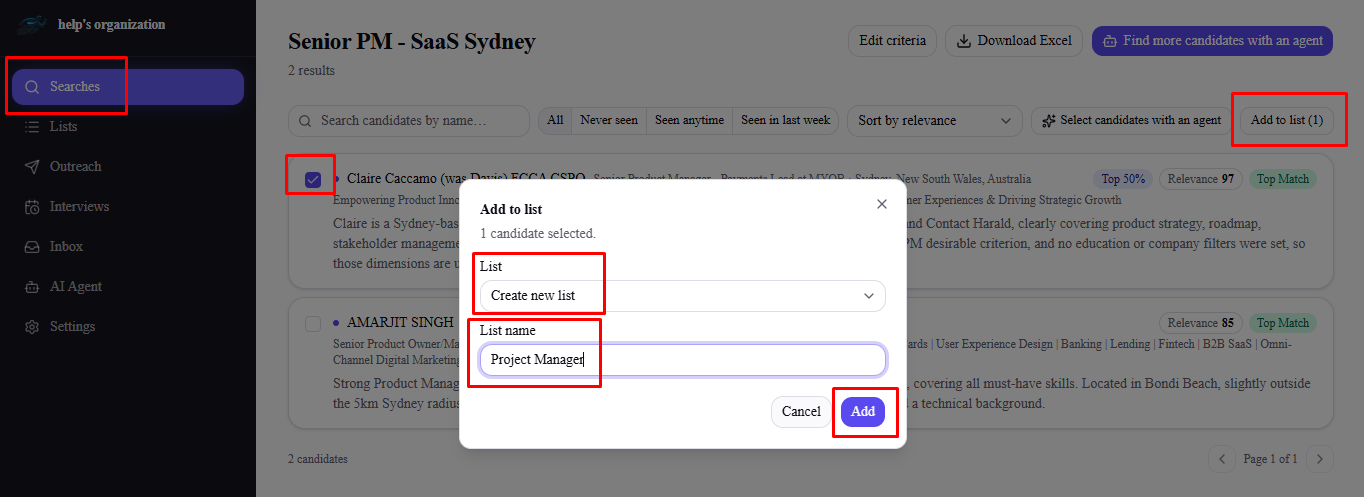
Method 2: Save several at once
On a search's results page, check the box next to each candidate you want to save.
An "Add to list (N)" button appears once at least one is selected — select it.
Pick an existing list or create a new one, same as above, then select Add.
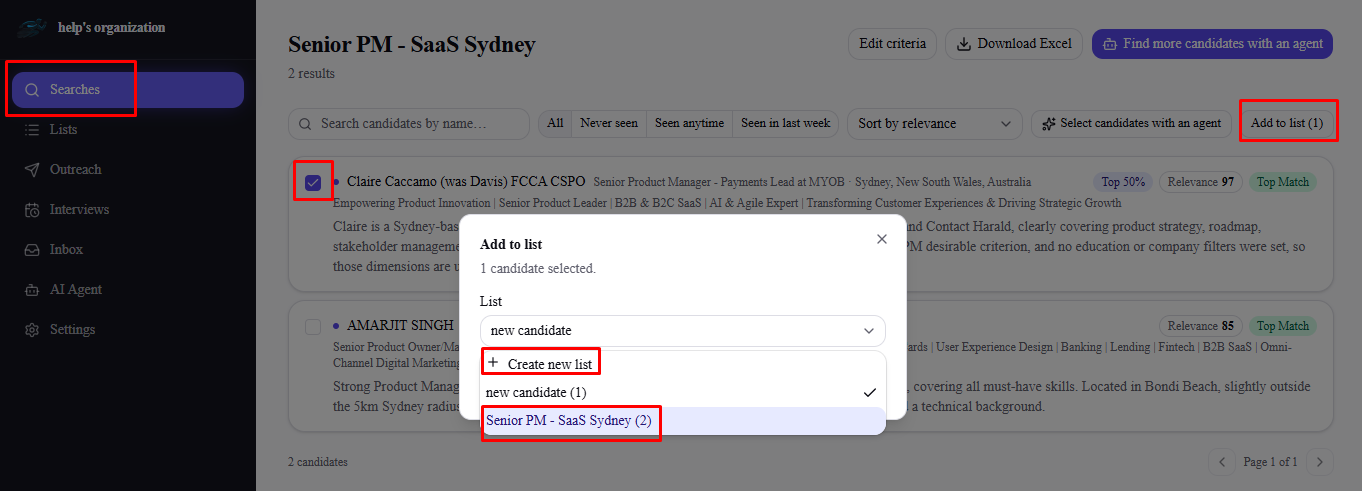
If you've used "Select candidates with an agent" to have the AI pick a subset for you, the same "Add to list" flow is offered right after it finishes — no need to manually check each one it picked.
Where saved candidates go
Go to Lists to see everything you've saved, grouped by list, with each list showing its candidate count and creation date. Select a list to see who's in it, or use the download icon to export it as Excel.
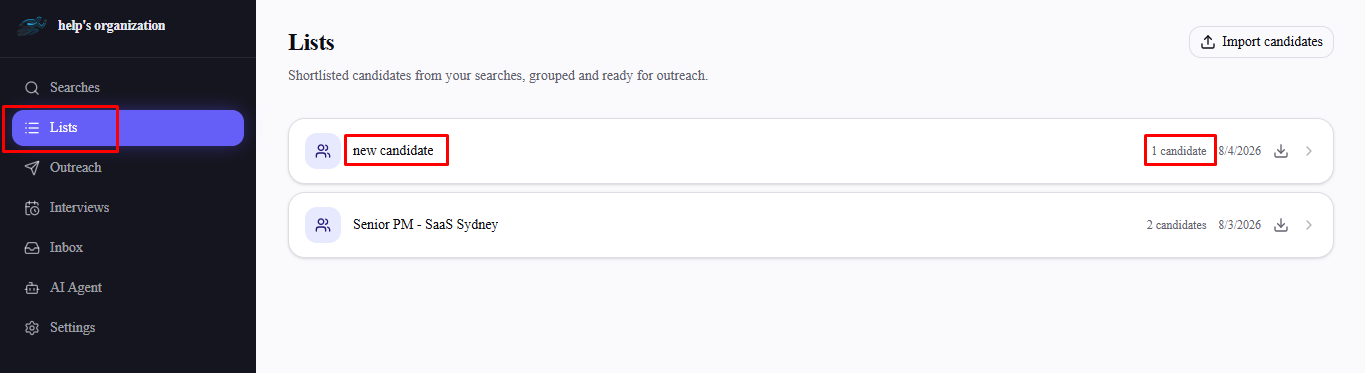
Importing candidates from a file
On the Lists page, select Import to build or add to a list from a spreadsheet instead of sourcing through a search. FastHire accepts both CSV and Excel (.xlsx) files, up to 500 rows per import. Column headers are matched flexibly and case-insensitively — "Full Name," "name," "LinkedIn URL," "LinkedIn profile," "current company," and similar variations are all recognized; only a name is required per row, everything else is optional.
If a row has a name and company but no LinkedIn URL, and you have a LinkedIn account connected, FastHire automatically searches LinkedIn in the background to find that person's profile. Rows it resolves confidently are updated silently. Rows where it finds more than one plausible match show a Review LinkedIn match flag next to the candidate's name on the list — open it to pick the correct profile, or dismiss it if none match.
Two things worth knowing about imported candidates: candidates with two or more past roles that each lasted under a year are flagged with a red flag icon (a quick signal they may be a frequent job-changer), and any candidate imported without a resolved LinkedIn profile will have their LinkedIn outreach steps simulate rather than actually send if added to a sequence later — see "Troubleshooting: Why Isn't My Sequence Sending?"
Candidates from job postings
Anyone who applies through one of your job postings' public pages is added automatically to a list created for that posting — you don't need to import or add them yourself. See "How to Create a Job Posting from a Search" for how applications reach FastHire in the first place. On a list's detail page, these candidates carry a Job post badge so you can tell them apart from candidates your AI Agent sourced or you imported by CSV. Every job-posting application across your whole organization is also collected in one place at Lists → Job applications.
Frequently asked questions
Can I add the same candidate to more than one list?
Yes — a candidate can belong to any number of lists.
What happens if I add a candidate who's already on that list?
Nothing duplicates — they stay a single entry on the list, though their saved match reasoning is refreshed if you're adding them from a newer search result.
Are lists shared with my team, or just visible to me?
Lists belong to your organization, not just the person who created them — anyone on your team can see and use any list.
Is importing a CSV another way to build a list?
Yes — the Import option on the Lists page lets you create a list from a CSV of candidates instead of sourcing through a search.
Do I need a list before I can start outreach?
Yes — outreach sequences are built from a list, so candidates need to be saved to one before you can add them to a sequence.