
Using Calendly Links with FastHire
Rakesh · August 5, 2026 · 3 min read
Connecting Calendly gives FastHire your scheduling link to use as the interview meeting link automatically — it's the fallback for orgs that use Calendly instead Google Calendar.
Step 1: Connect Calendly
Go to Settings → Connections, find the Calendar section, and select Connect Calendly.
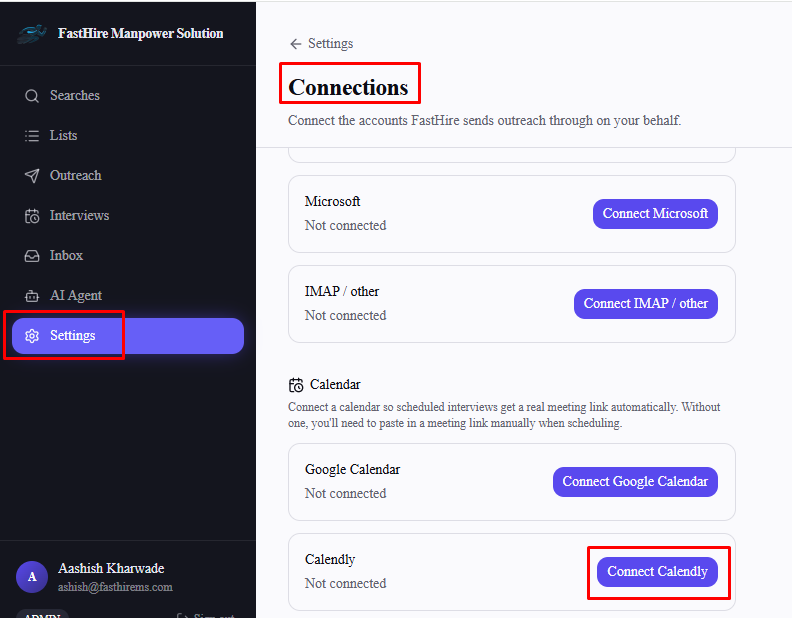
Step 2: Authorize on Calendly
You'll be redirected to Calendly to sign in and approve access, then brought back to FastHire with a confirmation. The Calendar section updates to show Connected shortly after.
What gets connected
FastHire pulls your account's main Calendly scheduling link — the same general booking page URL you'd normally share with anyone — not a specific event type you pick inside FastHire. If you want a different event type used, set that as your primary scheduling link in Calendly itself and reconnect.
How it's used when scheduling
When scheduling an interview, choosing "Auto-generate a meeting link" uses your Calendly link whenever Calendly is your connected calendar. Only one calendar connection is ever active at a time — Google Calendar, Microsoft Teams, or Calendly — so there's no priority order to worry about; whichever one you've connected is the one that's used.
Frequently asked questions
Can I pick which Calendly event type gets used?
Not from within FastHire — it always uses your account's main scheduling URL. Change your default event type in Calendly directly if you want a different one to be used.
Does FastHire create a calendar event when Calendly is used?
No — that only happens with a Google Calendar connection. With Calendly, FastHire hands the candidate your scheduling link, and the actual booking (and any calendar event) happens on Calendly's side.
Do I need to reconnect if my Calendly scheduling link changes?
Yes — select Reconnect in Settings → Connections to pull your current scheduling link again.
Can I connect Calendly alongside Google Calendar or Microsoft Teams?
No — connecting a new calendar requires disconnecting whichever one is currently active. Go to Settings → Connections and disconnect the current calendar before connecting Calendly.