
How to Invite Team Members to Your FastHire Account?
Rakesh · August 4, 2026 · 3 min read
Only Org Admins can invite teammates to a FastHire account. Invites aren't emailed automatically — you generate a shareable link and send it yourself, and the person you invite sets their own name and password when they open it.
Before you start
You must be an Org Admin to invite, remove, or change the role of teammates. Recruiters can't access Settings → Team.
Outreach sequence activation is limited by seats on your plan — inviting someone doesn't automatically give them a seat (more on this below).
Step 1: Send an invite
Go to Settings → Team.
Under "Invite a teammate," enter their email address.
Choose their role — Admin or Recruiter — from the dropdown.
Select Invite.
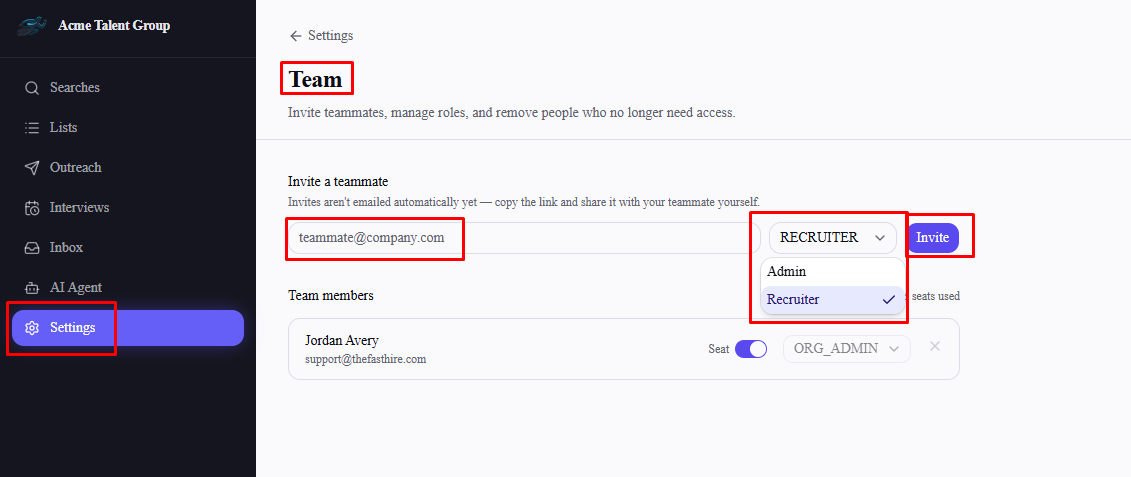
FastHire generates a shareable invite link and displays it right below the form. Copy it and send it to your teammate yourself — by Slack, email, or however you'd normally reach them. No email is sent automatically.
Step 2: What your teammate sees
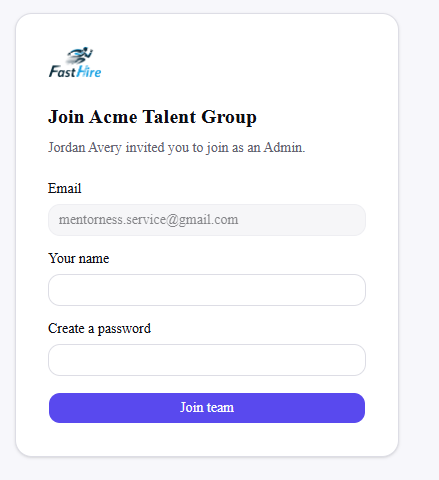
When they open the link, they land on a page showing your organization's name and who invited them. They enter their name and create a password, then select Join team — no separate email confirmation step.
If the link has already been used, revoked, or was never valid, they'll see an "Invite link invalid" message instead, and will need a fresh link from an admin.
Managing pending invitations
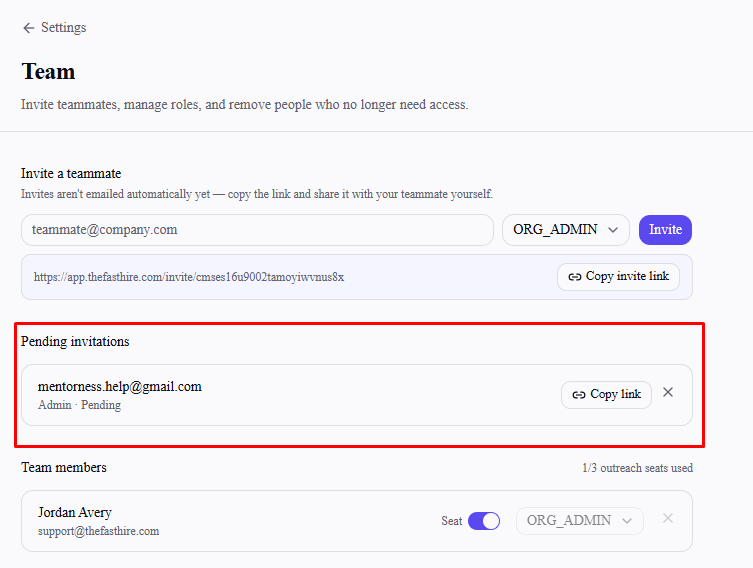
Invites you've sent but that haven't been accepted yet appear under "Pending invitations," with their email and chosen role. From here you can:
Copy the link again if the original message got lost
Revoke the invite (the × button) if you invited the wrong person or they no longer need access
Inviting the same email address again while it's still pending updates their role and refreshes the invite — it doesn't create a duplicate.
Managing existing team members
The "Team members" list shows everyone with access, along with three controls per person:
Seat toggle — enables that person to activate outreach sequences. Seats are limited by your plan; the count at the top of this section ("X/Y outreach seats used") shows how many you've used. If you're at your limit, you'll need to turn off someone else's seat before enabling a new one.
Role — switch someone between Admin and Recruiter.
Remove (×) — deactivates their access to your organization.
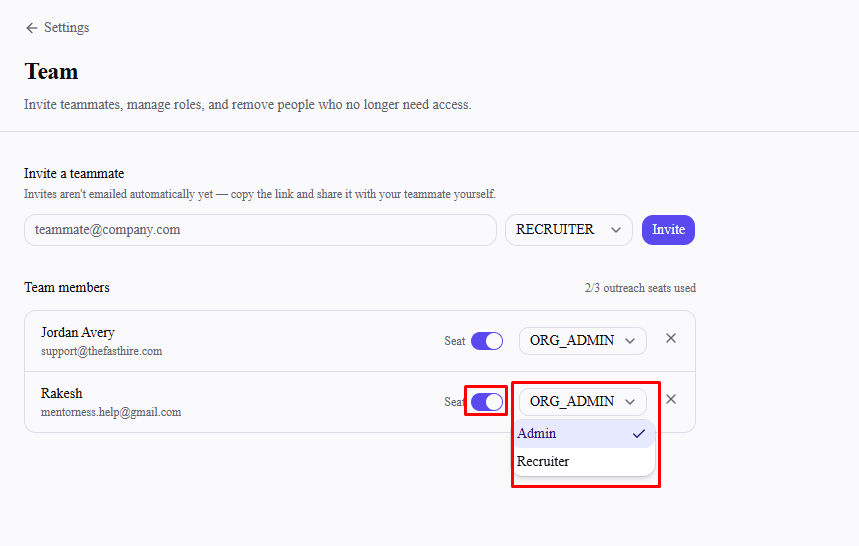
FastHire won't let you demote or remove your organization's last remaining Admin — those controls are disabled for that person until another Admin exists.
Frequently asked questions
Why didn't my teammate get an email?
FastHire doesn't send invite emails automatically yet. After you invite someone, copy the link shown on the Team page and send it to them yourself.
What's the difference between Admin and Recruiter?
Admins can access Settings → Team to invite, remove, and manage roles and seats. Recruiters have full access to sourcing, outreach, and candidates, but can't manage team membership or billing.
Does inviting someone use up an outreach seat?
No. Invited teammates join without a seat by default. An Admin needs to separately enable their seat toggle on the Team page before that person can activate outreach sequences, and only if a seat is available.
Can I invite someone who's already on another FastHire organization?
Yes, as long as their email isn't already part of your organization. Each person's account is scoped to a single organization at a time.
What happens if I remove someone by accident?
Removing deactivates their access rather than deleting their account outright, and they'll no longer appear in your Team members list. There's no self-serve way to reactivate them from Settings → Team — contact FastHire support if you need someone's access restored.