
How FastHire's AI Sourcing Agent Finds and Scores Candidates
Rakesh · August 5, 2026 · 5 min read
The AI Sourcing Agent takes a saved search, sources matching candidates from LinkedIn, and scores each one across six weighted dimensions — skills, experience, location, education, company fit.
Before you start: connect LinkedIn
The agent sources candidates through your connected LinkedIn account. If you don't have one connected, or it's expired, the run fails immediately with a clear message telling you to (re)connect it from Settings → Connections. It sources using whichever team member's LinkedIn account started the run — not a shared org-wide account.
Step 1: Start from a search
Set up an agent from a saved search — either by turning on "Create an AI agent for this search once it's saved" when creating it, or selecting Find candidates with an agent from an existing search's results page. FastHire proposes Mandatory and Desirable criteria from your search automatically (see "Setting Mandatory vs. Desirable Criteria in a Search" for how that split works and how it affects scoring).
Step 2: Calibrate the agent
You'll be shown a handful of sample candidate profiles, one at a time, and asked: "Would you consider this a valid candidate?" Select Yes or No — if No, you can optionally explain why. This calibration log is passed to the AI on every future scoring run for this agent, so it learns your specific judgment rather than applying generic criteria matching alone.
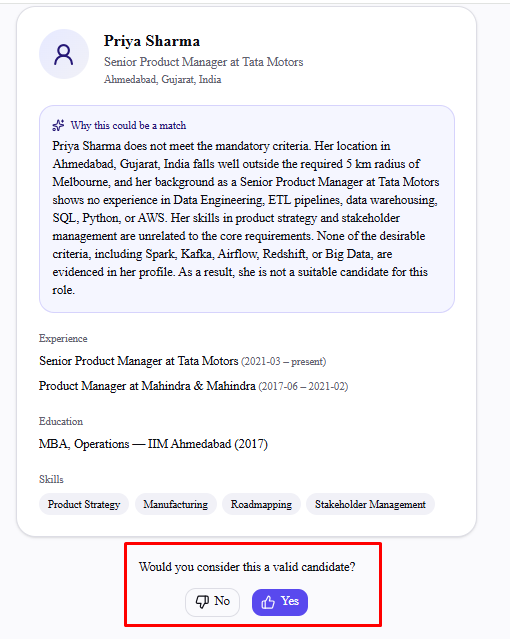
These calibration profiles are sample data, not candidates sourced from your real search — they're only there to teach the agent your preferences before it runs against real LinkedIn profiles.
Step 3: Configure the run
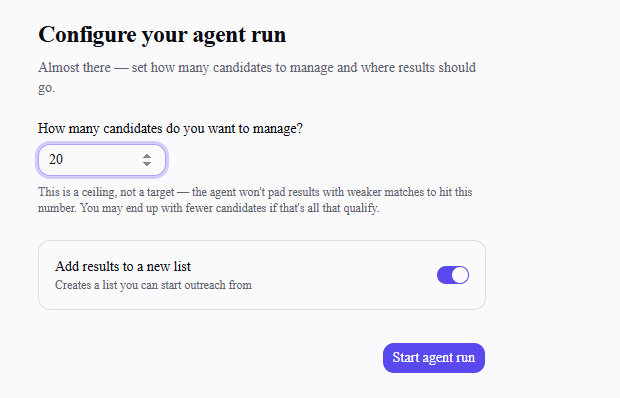
Set how many candidates to manage — this is a ceiling, not a target. The agent won't pad results with weak matches to hit that number; you may end up with fewer if that's all that qualifies. Trial plans are capped at a lower limit regardless of what you enter.
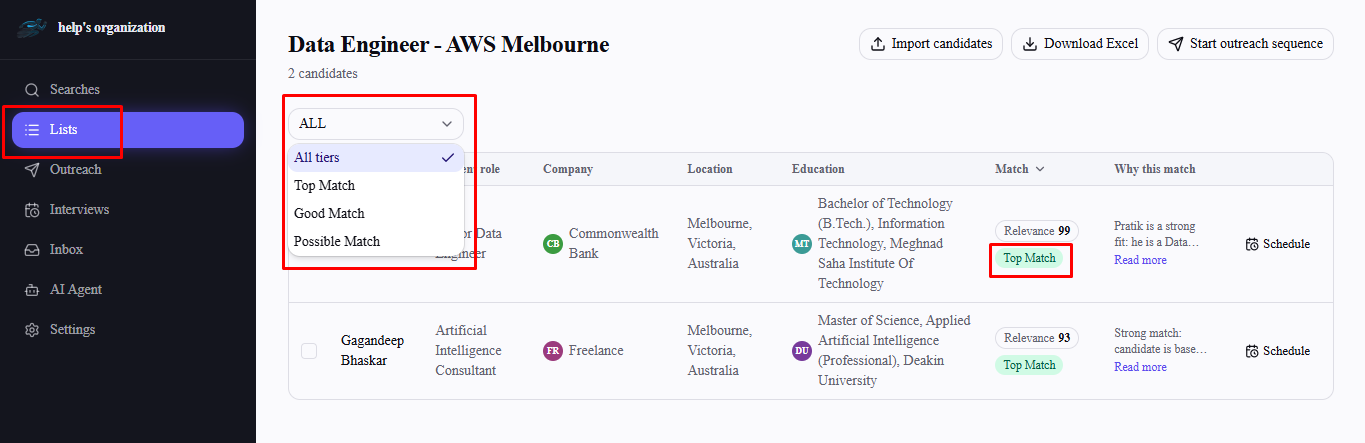
Leave "Add results to a new list" on if you want a list (named after your search) created automatically with the top-scoring candidates, ready for outreach.
Select Start agent run to begin.
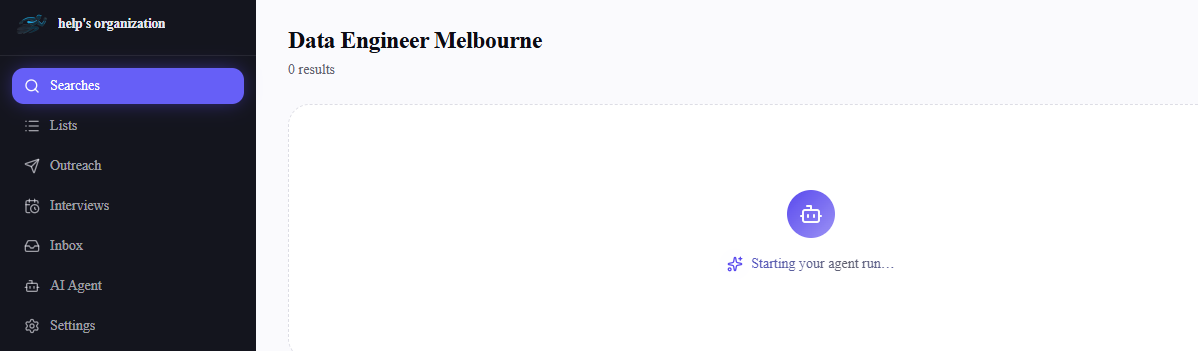
What happens during the run
The agent runs in the background, so you can navigate away — results fill in progressively on the search's results page while it works.
Candidates whose current job title and function are a clear mismatch for the role you're sourcing (e.g. the search is for engineers and the candidate is presently a founder in an unrelated field) are dropped before they ever reach your results — you won't see them as low scorers.
Sources candidate profiles from LinkedIn matching your search's full criteria, up to your candidate cap
Fetches and normalizes each candidate's full profile (a single locked or unreachable profile is skipped, not treated as a failure)
Scores each candidate against your mandatory and desirable criteria, using your calibration log to guide judgment
Saves each as a search result with a match score, match tier, and a short match reasoning
If enabled, creates a list and adds the top-scoring candidates up to your cap
Understanding the relevance score
Instead of a tiered label, every result carries a single 0–100 Relevance score — a weighted blend of skills, experience relevance, location, education, company fit, industry fit, nice-to-have match, headline fit, and about-section fit. Missing a mandatory criterion pulls the skills dimension down sharply rather than capping the whole score, so a strong candidate with one mandatory gap can still land a decent overall score. Candidates whose current role clearly doesn't match the kind of work you're searching for are filtered out automatically and won't appear in your results at all — they're not scored low, they're excluded.
If a run fails
"No LinkedIn account connected" or "Reconnect your LinkedIn account" — connect or refresh your connection in Settings → Connections, then start the run again.
Rate limit reached — LinkedIn is temporarily throttling that account; wait and try running the agent again later.
Frequently asked questions
Does running the agent again re-score everyone, or just add new candidates?
Both — already-sourced candidates get their profile data refreshed and rescored, and any newly matching candidates are added, up to your candidate cap.
Does the agent use credits?
Sourcing and scoring itself doesn't spend contact credits — credits are spent later, the first time you actually message a candidate through an outreach sequence.
Can I change mandatory or desirable criteria after calibrating?
Update your search's criteria, then start a new agent setup from that search — it re-proposes criteria and calibration fresh each time, so a later run reflects your changes.
Why did I get fewer candidates than my cap?
The cap is a ceiling, not a target. If fewer candidates on LinkedIn actually match your criteria, the agent returns what qualifies rather than padding the list with weaker matches.