
Using AI-Generated Messaging in Sequences
Rakesh · August 5, 2026 · 4 min read
"Generate messages" writes one AI-drafted template per step you've ticked — not a unique message written from scratch for every candidate. Personalization comes from merge fields, which get filled in with each candidate's real details when the message is previewed or actually sent.
What shapes the AI's draft
When you select Generate messages, the AI writes content for every ticked step at once, guided by your Message settings — tone, language, what to highlight about the role, whether to mention salary, and the candidate's desired action: apply via a link, reply to the message, or schedule a meeting.
Merge fields
Merge fields are tokens like {{firstName}} that get replaced with each candidate's actual details. The available fields are: First name, Last name, Full name, Company, Job title, Your name, and Application link. Click any field button above a message box to insert it at your cursor — you don't need to type the token syntax yourself.
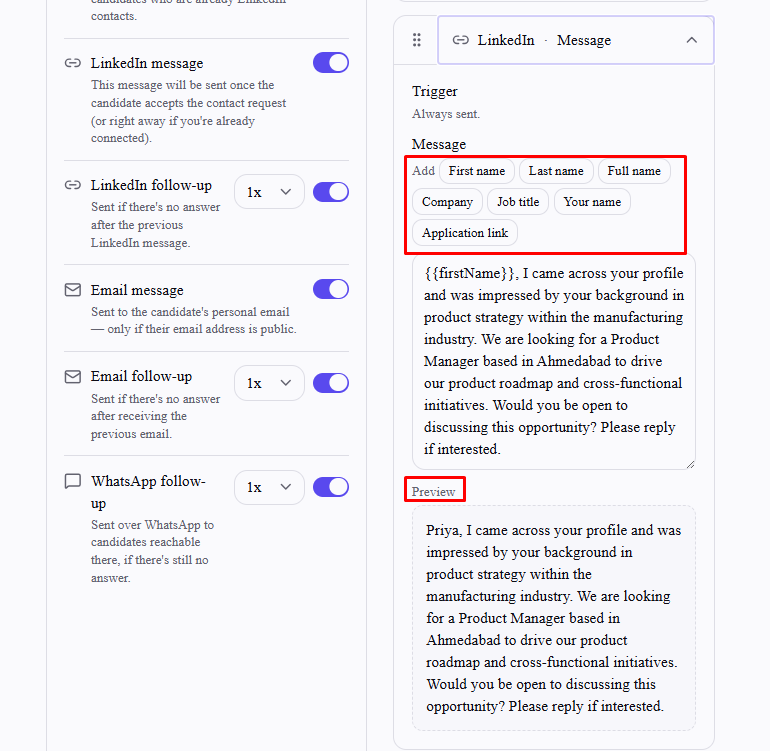
Each step shows a live preview underneath the editor using sample candidate data as you type, so you can see roughly how it reads before checking real candidates.
Filling in the action link automatically
If you set the desired action to "Apply via link," select Use job posting link next to the field to fill it in from one of your organization's live job postings (a dropdown appears if you have more than one) instead of typing or pasting a URL by hand.
If you set it to "Schedule a meeting" and you have Calendly connected, select Use my Calendly link to fill in your standing scheduling link the same way. This option isn't offered for Google Calendar or Microsoft Teams — those generate a fresh meeting link per scheduled interview automatically as part of actually scheduling one, rather than having a standing link to reuse ahead of time.
Either way, the field stays a normal editable box afterward, so you can adjust the auto-filled link or replace it with something else entirely.
Check the real preview before activating
Select Preview message to see the actual, final copy for every candidate in your target list(s) — not a generic sample. This is the moment to catch a real problem: if a candidate is missing data for a merge field (e.g. no known current company), the literal {{company}} token is left in the message as-is rather than being removed or left blank. Read through a few real candidates here before activating, especially if your list includes candidates sourced with incomplete profile data.
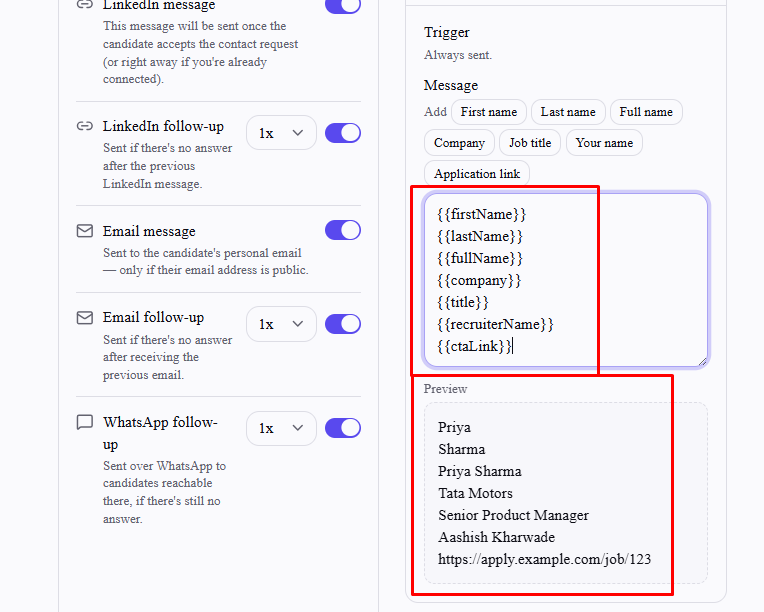
Editing after generating
Every generated message stays fully editable — treat the AI draft as a starting point, not a final answer. You can hand-edit some steps and leave others as generated. Selecting Generate messages again regenerates and overwrites every step's content, including any manual edits you've already made, so make it your last step before activating rather than something you run repeatedly while editing.
Frequently asked questions
Does every candidate get a uniquely AI-written message?
No — everyone on the sequence gets the same generated template per step, personalized only through merge fields. If you need genuinely different wording for one candidate, use "Allow custom candidate messages" to override that person specifically.
What happens to a merge field if the candidate's data is missing?
The literal token (e.g. {{company}}) is left in the message untouched — it doesn't disappear or get replaced with a blank. Always check Preview message for candidates you suspect have incomplete data.
Can I write a step's message myself instead of generating it?
Yes — every step's textarea is a normal editable field. You don't need to generate anything first; just tick the step and type.
Will regenerating keep my manual edits on other steps?
No — Generate messages rewrites every ticked step's content each time it runs, not just the ones you haven't touched yet.
Does the language setting translate merge fields too?
Merge field values (like a candidate's actual name or company) are inserted as-is regardless of language — only the surrounding AI-written text is written in your selected language.