
How to Create a Candidate Search on FastHire
Rakesh · August 5, 2026 · 4 min read
Creating a search starts with a plain-language description or a pasted job description — FastHire's AI drafts structured criteria for you, which you can then fine-tune by editing fields directly or by chatting with the assistant.
Step 1: Start a new search
Go to Searches and select New search (or Create your first search if you don't have any yet).
Step 2: Describe who you're looking for
On the "Who are you looking for?" screen, you have two ways to start:
Describe it in your own words — the default. Type a plain-language description, e.g. "Product Managers in Ahmedabad with at least 5 years in manufacturing."
Use a job description instead — If you're uploading rather than pasting, FastHire accepts .doc, .docx, .pdf, and .txt files (up to 8MB).
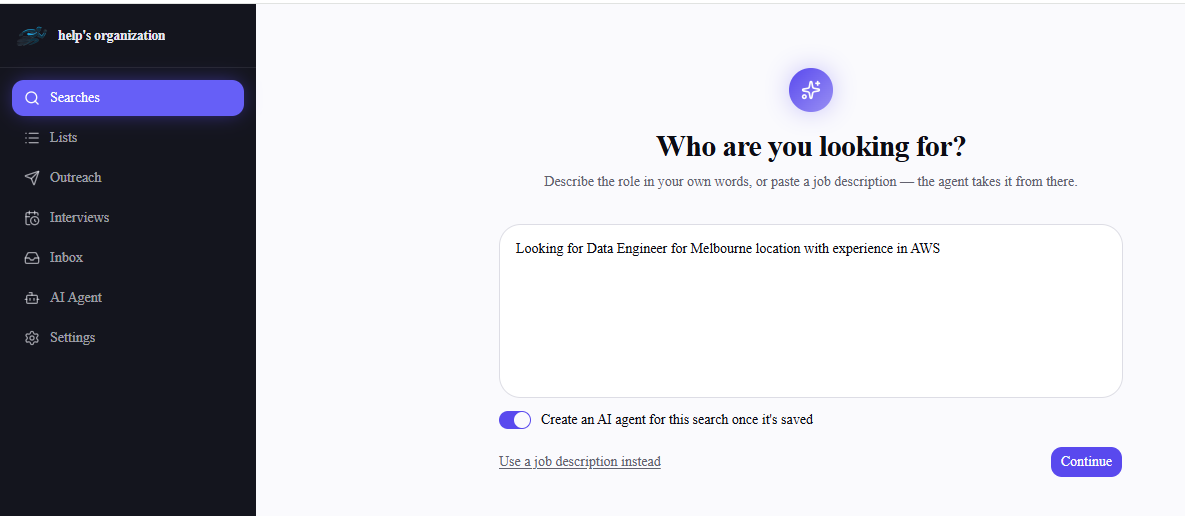
Leave "Create an AI agent for this search once it's saved" switched on if you want an agent set up immediately after saving — otherwise turn it off and set one up later from the search's results page.
Select Continue (or Parse in job-description mode) once you've entered your text.
Step 3: Review the AI-drafted criteria
FastHire extracts structured search criteria from what you wrote and opens the criteria editor, split into two panels:
Left panel — the editable criteria form, grouped into General (search name, roles, location, must-have and nice-to-have keywords), Experience (time in current role, total years, industries, business model), Companies (specific companies, size, funding stage), Education, Languages, and Profile name.
Right panel — a chat assistant. Instead of editing fields by hand, you can tell it what to change (e.g. "also include Sydney" or "make 3 years experience a must-have") and it updates the form for you.
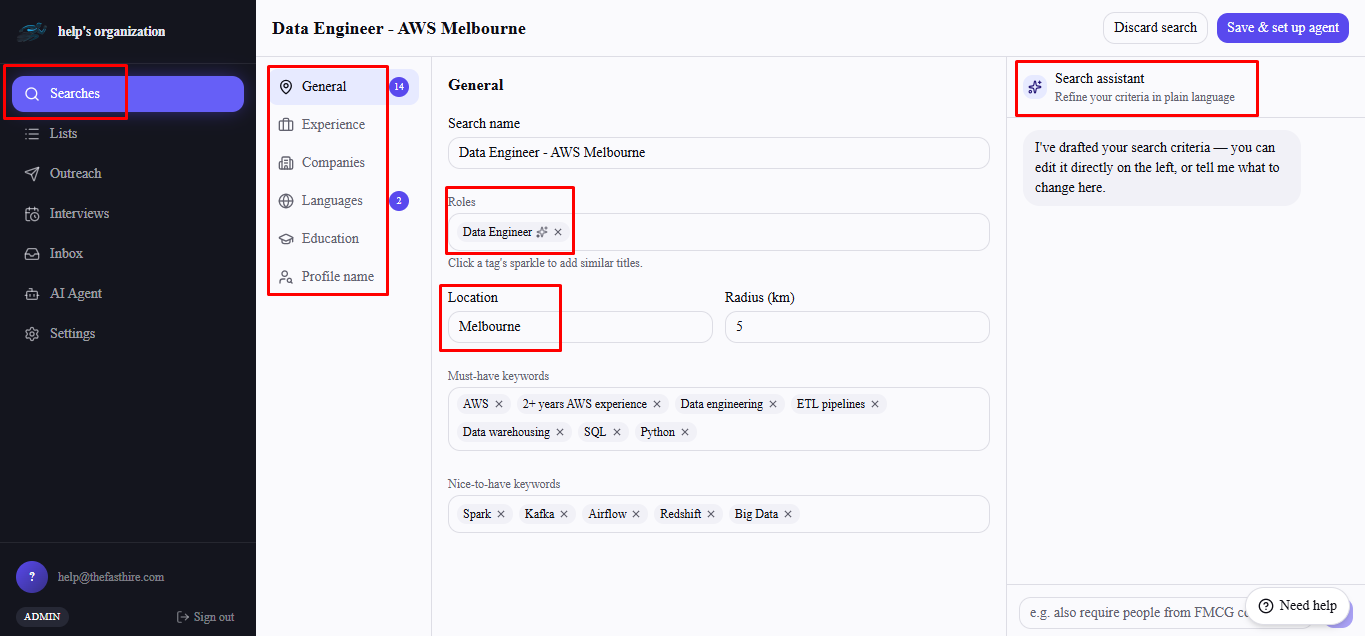
Must-have keywords are the mandatory criteria a candidate needs to match; nice-to-have keywords are desirable but not required — this is the mandatory-vs-desirable distinction referenced elsewhere in FastHire.
Give your search a name in the Search name field — if you leave it blank, it's saved as "Untitled search."
Step 4: Save
Select Save & set up agent (if the agent toggle was on) or Save search. You're taken to the agent setup page or straight to the search's results page, depending on that choice. If you change your mind before saving, Discard search abandons it with nothing kept.
Frequently asked questions
Can I edit the criteria after saving?
Yes — open the search's results page and select Edit criteria. Note that changing criteria doesn't rescore candidates you've already sourced; run "Find more candidates with an agent" afterward to source against the updated criteria.
What's the difference between must-have and nice-to-have keywords?
Must-have keywords are treated as required criteria; nice-to-have keywords influence scoring and ranking without excluding candidates who lack them.
Do I have to use the chat assistant?
No — it's entirely optional. Every field the chat assistant can change is also directly editable in the form on the left.
What happens if I hit my search limit?
Trial and some plans cap how many searches you can create per billing period. If you're at your limit, saving fails with an error — check Settings → Billing for your usage and upgrade options.
Can I create a search without a job description or my own summary?
No — FastHire needs either a plain-language description or a pasted job description to draft criteria from. There's no blank/manual-only starting point on this screen.