
How to Update Your Profile Information
Rakesh · August 5, 2026 · 3 min read
Settings → Profile has two separate sections: your own personal details, which anyone can edit, and your organization's company info, which only an Org Admin can change (though everyone can see it).
Updating your own info
Under "Your info," update your full name, contact number, job title, and LinkedIn URL. Your email is shown but can't be changed here — it's tied to how you log in.
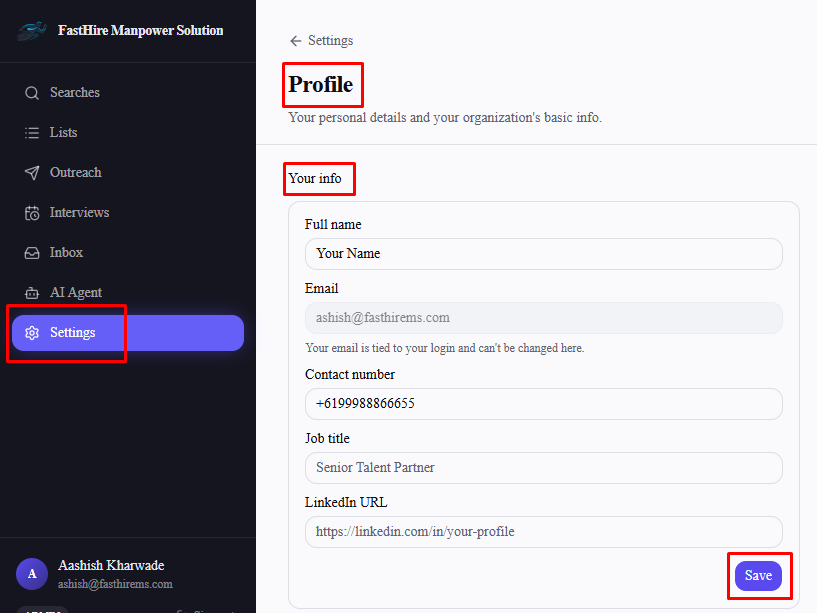
Select Save once you're done. If you navigate away or refresh the page before saving, your in-progress edits are preserved as a draft and restored when you come back — nothing is lost, but it also isn't actually saved until you click Save.
Updating company info
Under "Company info," Org Admins can update the company logo, name, industry, size, website, LinkedIn company page, city, and country. Non-admins can see all of this but every field is disabled, with a note that only an Org Admin can make changes.
Company info also includes a street address, postal code, and state — state is a dropdown scoped to the country you've selected, so it can't be mismatched (like "Sydney, India"). These aren't just cosmetic: your street address is used for card verification when you add a payment method in Billing, so it's worth filling in even though it's optional.
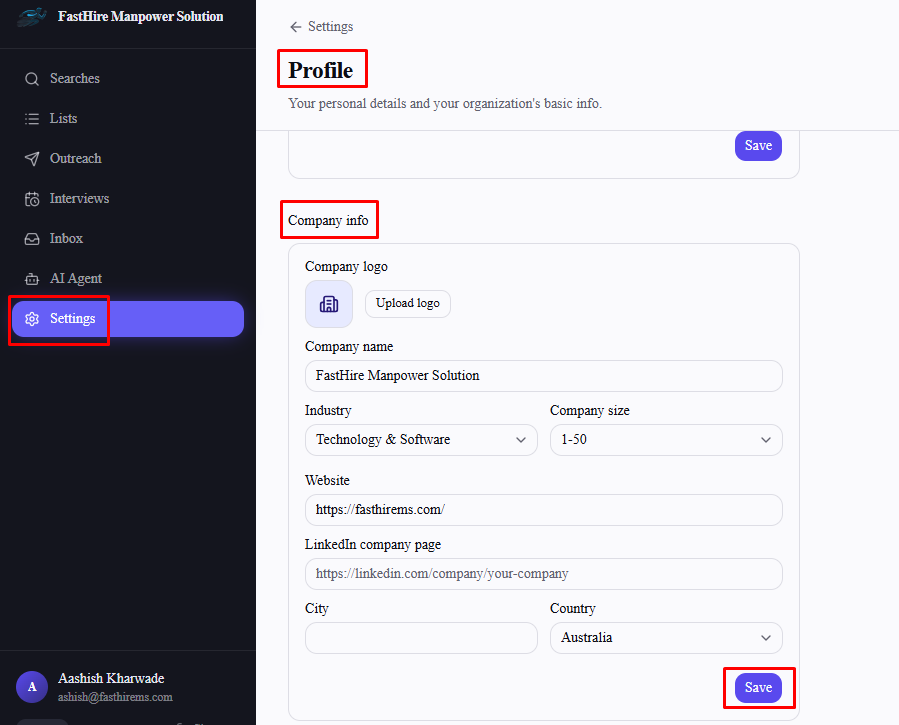
To change the logo, select Upload logo (or Change logo if one's already set) — images up to 2MB are accepted. Select Remove to clear it back to the default placeholder icon.
Frequently asked questions
Can I change my email address from here?
No — your email is tied to your login credentials and isn't editable from the Profile page.
Why can't I edit the Company info fields?
Only Org Admins can — these fields apply to your whole organization, not just you, so they're admin-gated the same way Team and billing settings are.
What happens if I close the tab in the middle of editing?
Your unsaved changes are kept as a draft and reappear next time you open Settings → Profile — they're just not committed to your account until you select Save.
Is there a size limit on the company logo?
Yes — up to 2MB. Larger images are rejected with an error asking for a smaller file.
Why does my save show an error mentioning a field I didn't touch?
Each save submits every field in that section, so a stale or invalid value somewhere else (an old malformed website URL, for example) can surface even if you only edited a different field. The error message names the specific field it's about — e.g. "Website: Enter a valid URL" — so you know exactly what to fix.