
How to Add Your Company Logo and Branding
Rakesh · August 5, 2026 · 2 min read
You can upload a company logo from Settings → Profile — it's an Org Admin-only setting, stored directly on your organization and displayed back on that same page.
Uploading a logo
Go to Settings → Profile and find the Company info section.
Select Upload logo (or Change logo if one's already set).
Choose an image file up to 2MB.
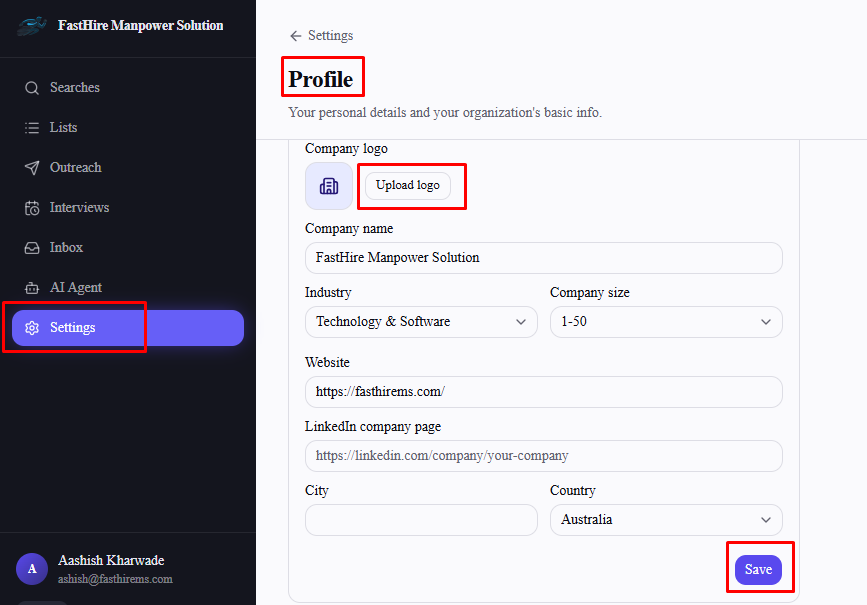
The image is stored directly rather than hosted externally, which is why the file size cap is relatively small — keep your logo file compact (a simple PNG or SVG export works better than a large, unoptimized photo).
Removing a logo
Select Remove next to the current logo to clear it back to the default placeholder icon.
Where your logo actually appears
Right now, your logo only shows on the Settings → Profile page itself. It doesn't currently appear on candidate-facing pages, in outreach messages, on emails, or anywhere else in the product — uploading one doesn't change what candidates see.
Frequently asked questions
Who can upload or change the company logo?
Only Org Admins — the field is disabled for everyone else, though anyone on the team can see whatever logo is currently set.
What file types are accepted?
Any image file, up to 2MB.
Will my logo show up in outreach emails or candidate-facing pages?
Not currently — it's only displayed on the Settings → Profile page today.
What happens if my upload is rejected?
You'll see an error if the file isn't an image or exceeds 2MB — try a smaller or re-exported version of the same image.