
How to Personalize a Message for an Individual Candidate
Rakesh · August 5, 2026 · 3 min read
You can rewrite one candidate's message for a single step in a sequence while everyone else keeps the default — useful when one person needs a different opening line, a correction, or a more specific ask than the rest of your list.
Step 1: Turn on custom candidate messages
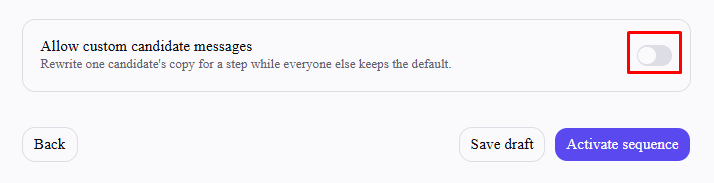
While reviewing a new sequence, turn on "Allow custom candidate messages" below the step editors. A candidate/step picker appears.
Step 2: Write the override
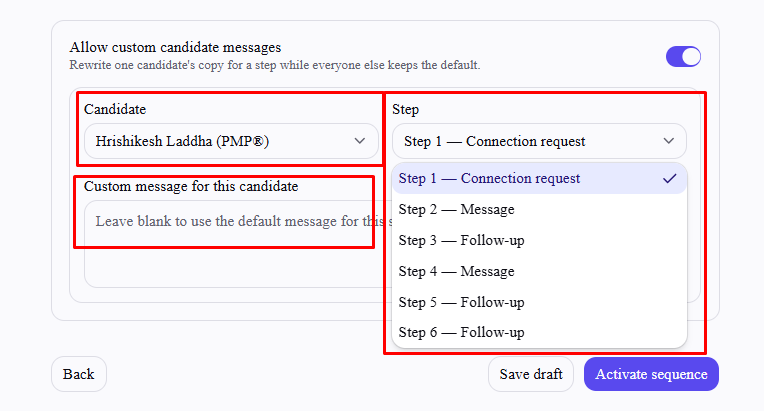
Choose the candidate from the dropdown.
Choose which step their custom message applies to.
Type their custom message in the text box — leave it blank to keep the default message for that step.
Merge fields like {{firstName}} still work inside a custom message — they're filled in the same way as the default template.
Managing overrides
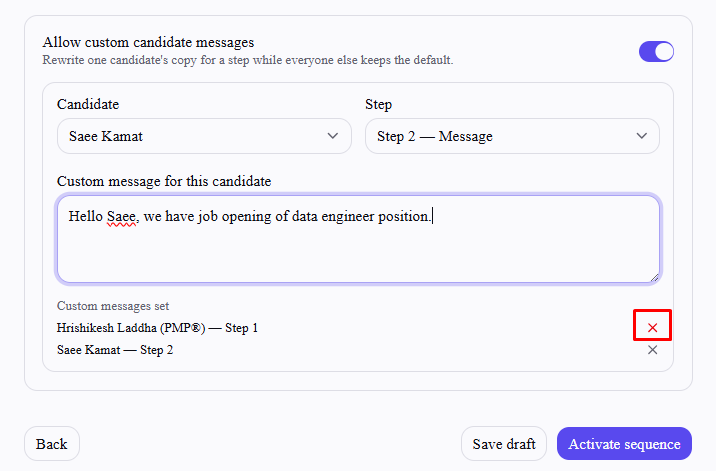
Every custom message you've set appears in a list below the editor, showing which candidate and step it applies to. Select the × next to any entry to remove it and fall back to that step's default message for that candidate.
Things to know before you activate
Overrides only apply if you activate in the same session you set them. They're not carried over if you save the sequence as a draft to activate later — there's currently no way to come back and activate a saved draft with its overrides intact.
Turning the toggle off before saving discards your overrides, even though they stay visible while the toggle is on. If you've entered custom messages, leave the toggle on through to Activate sequence.
A candidate with an override still receives every other step in the sequence normally — the override only replaces the one step you picked for them.
Frequently asked questions
Can I set custom messages for more than one candidate?
Yes — pick a different candidate from the dropdown and repeat. There's no limit to how many candidates or steps you can override.
Can I override more than one step for the same candidate?
Yes — select the same candidate again, choose a different step, and enter another custom message. Each candidate/step combination is tracked separately.
Does an override affect anyone else's message?
No — it only changes what that one candidate receives for that one step. Everyone else keeps the default message you set (or generated) for that step.
Can I edit a custom message after activating the sequence?
No — there's currently no way to edit a sequence's messages, including candidate overrides, once it's been saved. Get the wording right before you activate.